.svg)


Irregular Behavior Alerts: Activity Data You Can Trust
Mouse jigglers, auto-clickers, and other simulated activity can make your activity data look real when it isn't. Irregular Behavior Alert checks every completed shift and flags what doesn't look like genuine work, so you're never left guessing whether the numbers are accurate.

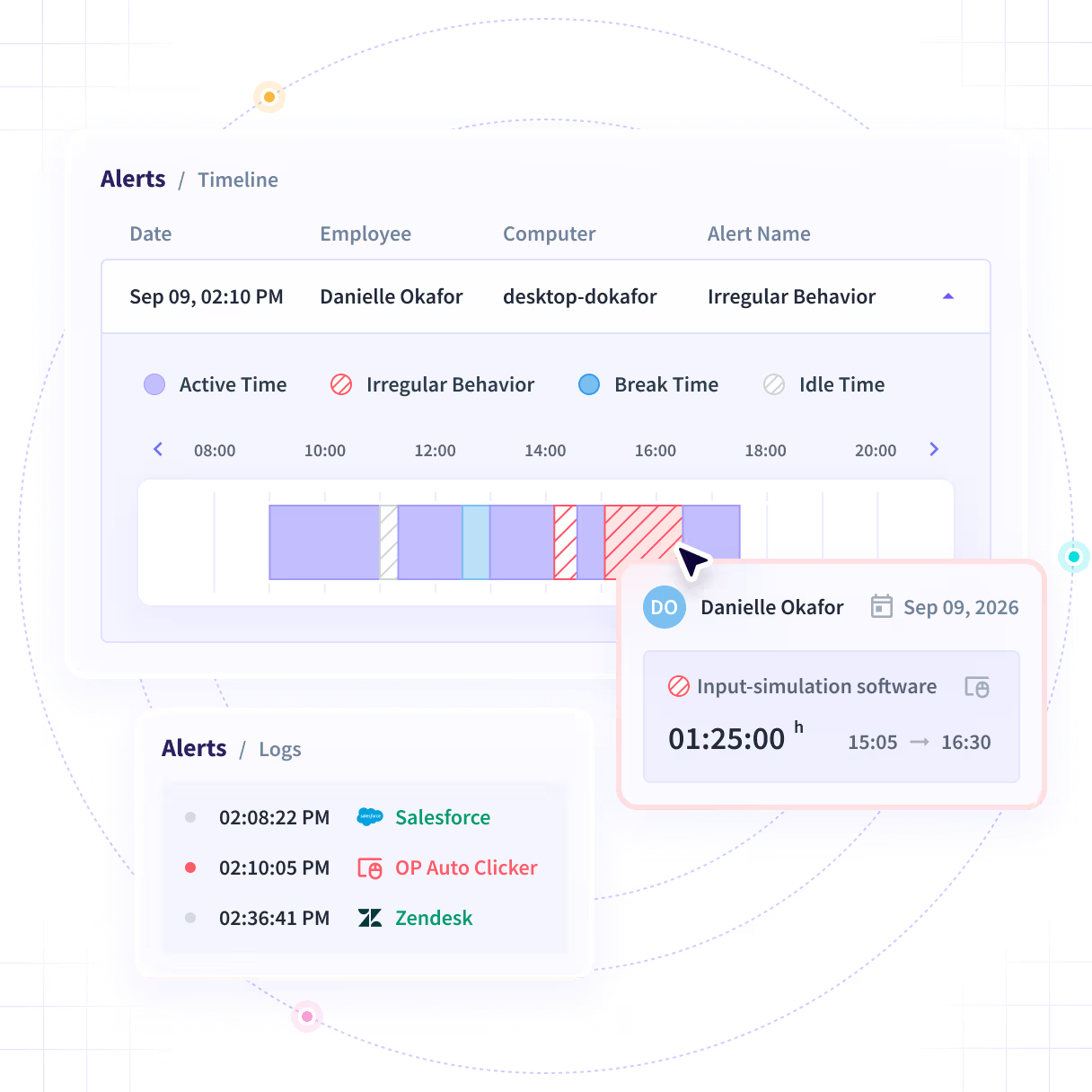







Not every data point reflects real work
Time and attendance data is only useful if it's real. Mouse jigglers, auto-clickers, and other simulation tools can generate activity that looks like work but isn't, and most systems have no way to tell the difference. Once that data feeds into a report, every decision built on it inherits the same blind spot.

Know when a shift's activity doesn't add up
Irregular Behavior Alert automatically flags shifts that don't look like genuine work, so you're not left taking the numbers on faith or digging through logs yourself. The result: workforce data you can actually rely on.

Automatic Detection, Every Shift.
Checked against a maintained list of known activity-simulation software plus behavioral signals, so nobody has to dig through logs manually.

Full Context, Not Just a Flag.
See the exact window in question in the Logs view: the activity timeline, the activity logs, and screenshots when enabled, before you draw any conclusions.

Alerts Scoped to What Matters to You.
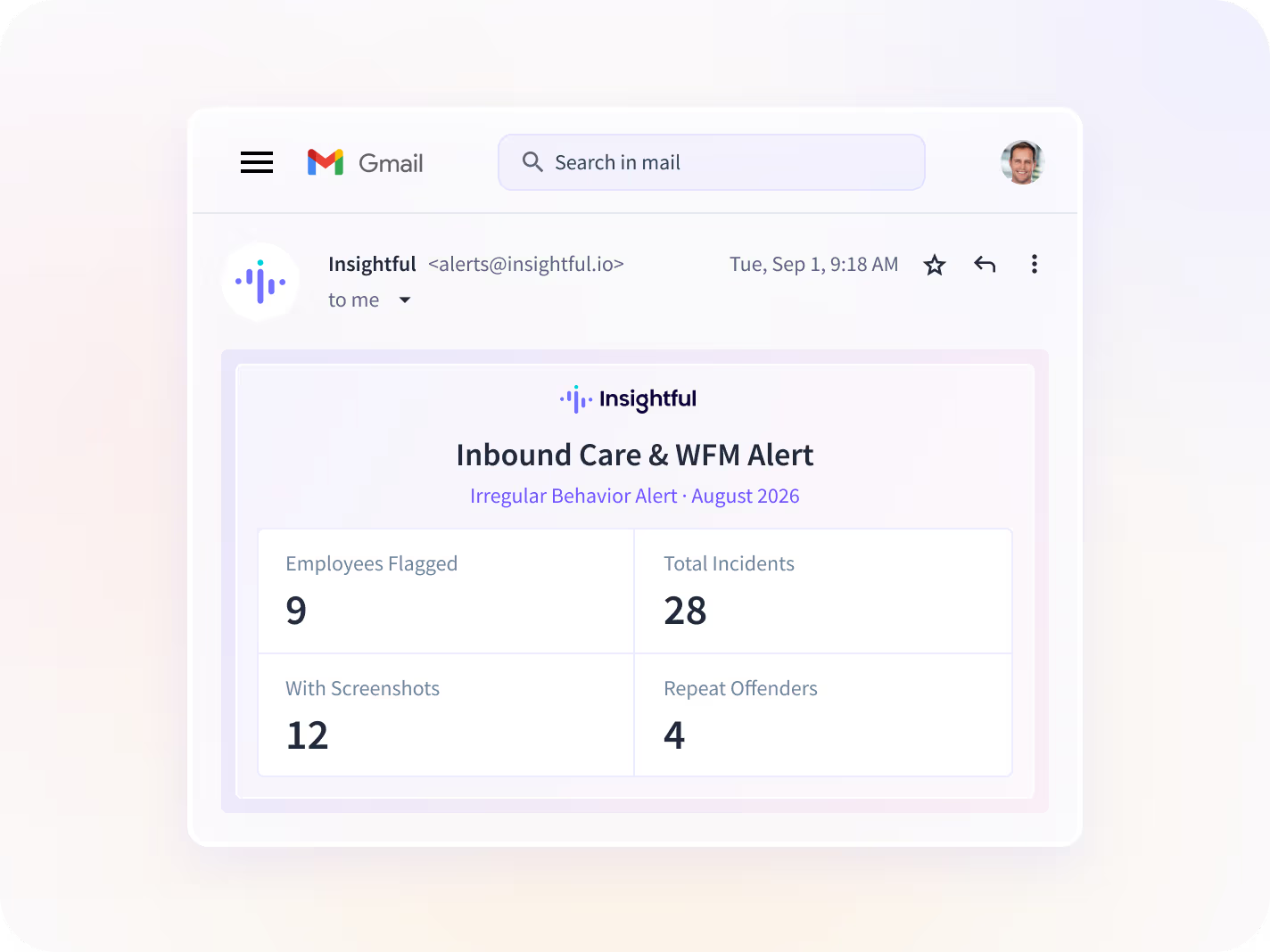
Admins and managers set up alerts for the teams and employees in their scope, delivered in-app, by email, or both.

Daily Digest or a Scheduled Recap.
One summary a day by default, or choose a Daily, Weekly, or Monthly email recap, with recurring cases separated from new ones

Included on Every Plan.
Available on Workforce Analytics, the Combo Plan, and Enterprise, plus your free trial. No separate add-on required.

Use cases
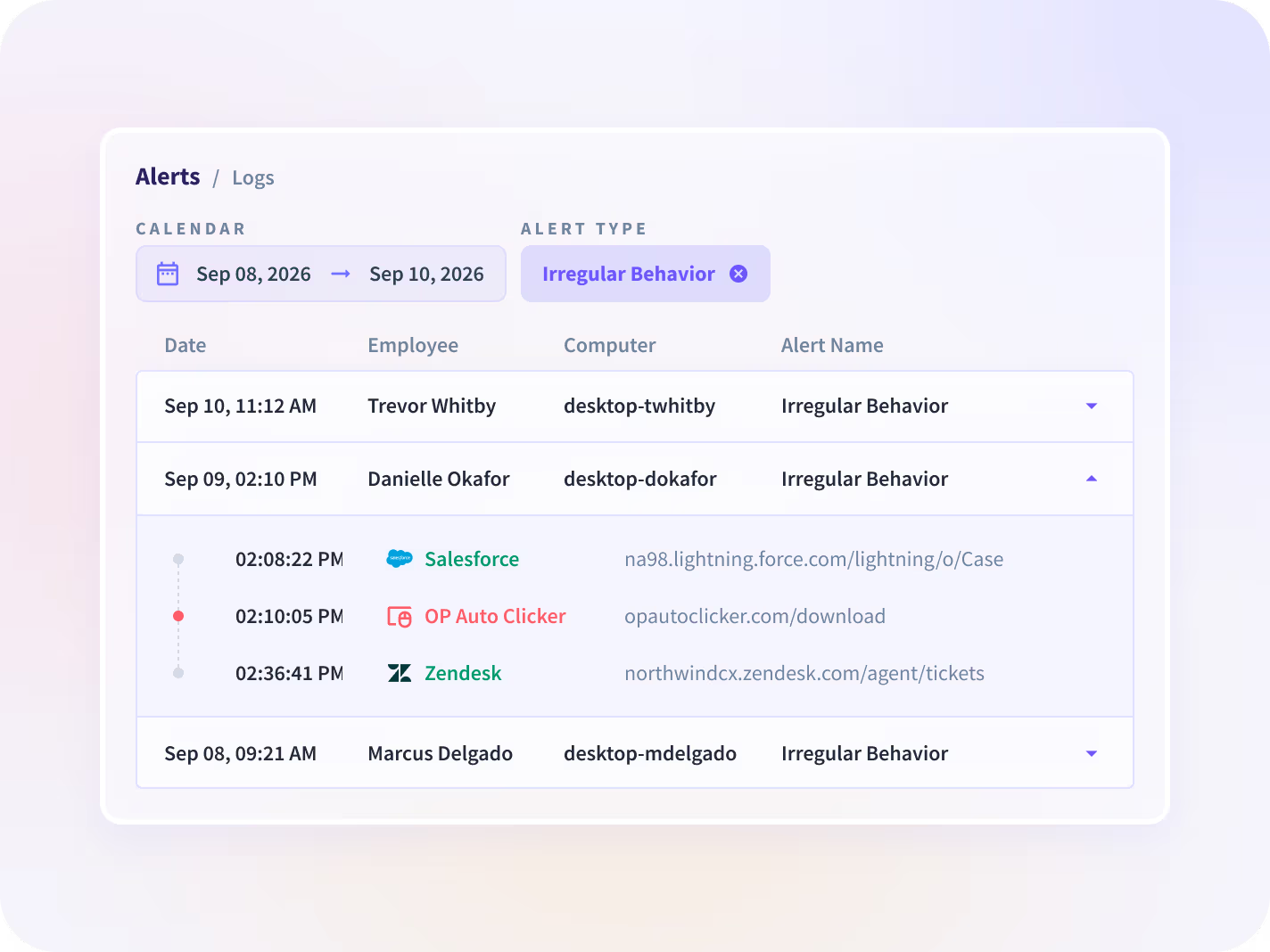


Simulated activity can inflate activity numbers without anyone noticing, and once it's in your reports, productivity trends and utilization figures stop reflecting real work. Irregular Behavior Alert flags questionable activity so you can review it and decide whether to include it in your analysis. Your workforce data stays a record of what actually happened.


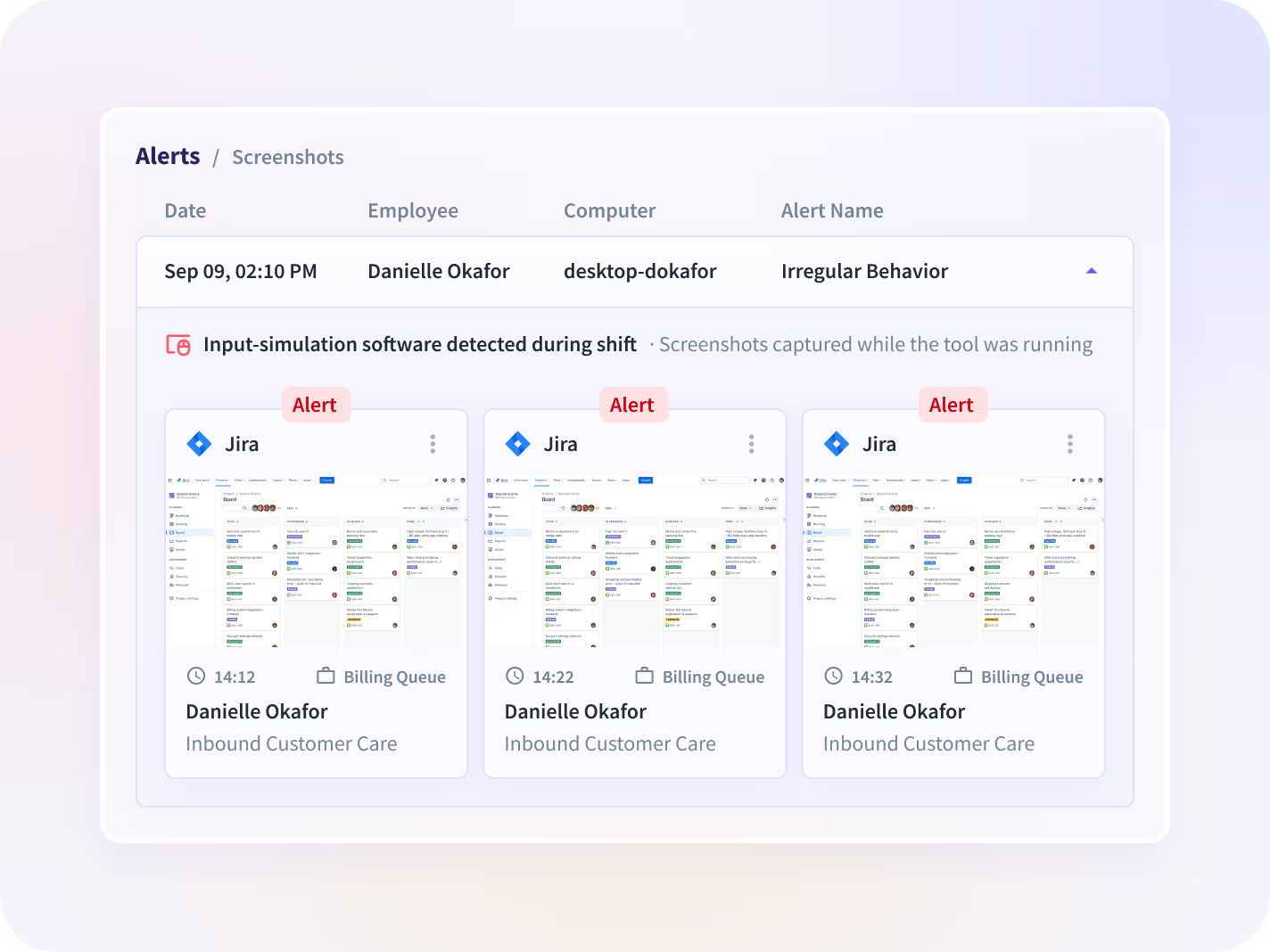
A flagged case is a starting point, not a verdict. Irregular Behavior Alert gives you the activity timeline, activity logs, and screenshots (if enabled) for the exact window in question, so you can see what happened and reach your own conclusion with real evidence to work from.


Alert setup shouldn't require IT or guesswork. Admins can create alerts for any team, while managers can set up alerts scoped to the employees they already oversee. Recipients and delivery (in-app, email, or both) are configured per alert, so the right person is notified without extending visibility beyond their scope.
Insightful seamlessly integrates with your technology ecosystem
With over 50 integrations available on the Insightful platform, connecting with your team's top tools is just a click away.


Trusted by 5,000+ Teams Worldwide






Make decisions on activity data you can trust
FAQs
Software-based mouse jigglers and auto-clickers, yes. Irregular Behavior Alert checks completed shifts against a maintained list of known activity-simulation software, plus behavioral signals like unusually precise or repetitive input. It doesn't detect physical or hardware jiggler devices, since those register as ordinary mouse movement.
Turn on Irregular Behavior Alert under Workforce Analytics. It automatically checks every completed shift against known activity-simulation software and flags anything that doesn't look like real work. No manual log review needed.
Yes, for software-based jigglers and auto-clickers. Irregular Behavior Alert runs this check automatically as part of Workforce Analytics, on every completed shift, across your team.
Ordinary mouse movement isn't treated as fake activity on its own. A case is only flagged once it clears a high-confidence threshold, so everyday work isn't caught up in the check.
Before anything is flagged, Insightful checks behavioral signals, known app data, and screenshots (if enabled) to assess whether the activity is genuinely irregular, not just movement that looks unusual. Alerts are only sent when the evidence supports it, so you're not chasing noise.
Admins can create alerts for any team or employee and choose recipients and delivery method. Managers can create alerts scoped to the employees already in their view. Each admin or manager can edit or delete the alerts they created; admins can also manage alerts created by managers.
Yes. It's included on the Workforce Analytics plan, the Combo Plan, and Enterprise, and available during your free trial. No separate add-on required.
Each completed shift is checked automatically. Results are compiled starting about two hours after midnight in your organization's time zone, and you'll get one consolidated notification at 8 AM covering everything flagged the day before, instead of a separate alert per incident. From there, open the Logs view to see the flagged window's activity timeline, activity logs, and screenshots if enabled, before deciding how to treat that data in your analysis. (A shift ending very late, after roughly 2 AM, shows up in the following day's digest instead.)
Irregular Behavior Alert checks a shift after it's finished, not in real time. That's what keeps the check accurate: it's looking at the whole shift's pattern rather than reacting to a single moment, which keeps ordinary activity from getting flagged by mistake.
Screenshots in the Logs view follow whatever's already configured under your regular tracking settings for that employee. There's no separate screenshot control specific to this alert. If screenshots are off for someone, they'll be off here too.


